
Scheduled tasks
A scheduled task runs at times you choose — daily, weekly, monthly, one-time, or a custom schedule.- “Every Friday at 4pm, summarize this week’s team activity and email it to me.”
- “Every Monday morning, refresh the specials section of my website.”
Proactive rules
A proactive rule runs when something happens, instead of at a set time. You describe the trigger and what Fig should do.- “Whenever I get an email from my biggest client, ping me on Slack.”
- “When someone signs up on my waitlist, send them a welcome email.”
Setting one up
1
Describe it
In a chat, tell Fig what you want done and when (or on what trigger). You can
also tap the Schedule task quick action on the home screen.
2
Confirm the details
Fig sets up the schedule or trigger. If the automation needs one of your
connected apps, Fig will ask you to connect it.
3
Let Fig take it from there
Fig runs the task automatically and saves the results. You’ll be able to see
when it last ran and whether it succeeded.
Managing your automations
Open the Scheduled section to see all of your automations in one place — on the web you’ll see them laid out on a calendar. From there you can pause, edit, or delete any of them, and review past runs.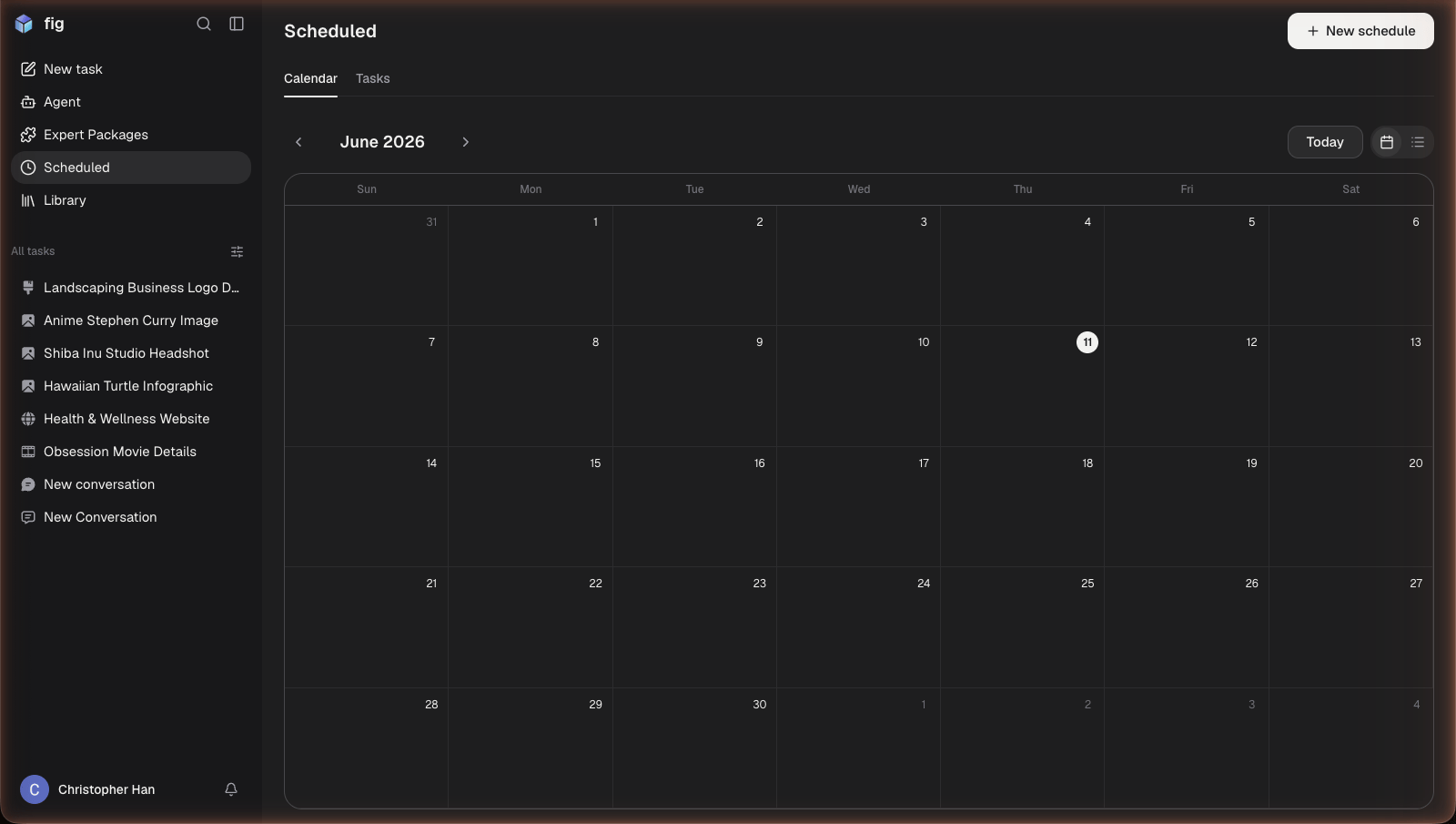
The Scheduled view on the web, with your tasks laid out on a calendar.
Scheduled tasks can run as often as every few minutes — but for most things,
daily or weekly is plenty.