
One of the most popular things to do with Fig is build a website — and then put it online with your own web address. Here’s how it works, start to finish.Documentation Index
Fetch the complete documentation index at: https://help.hellofig.io/llms.txt
Use this file to discover all available pages before exploring further.
Build your website
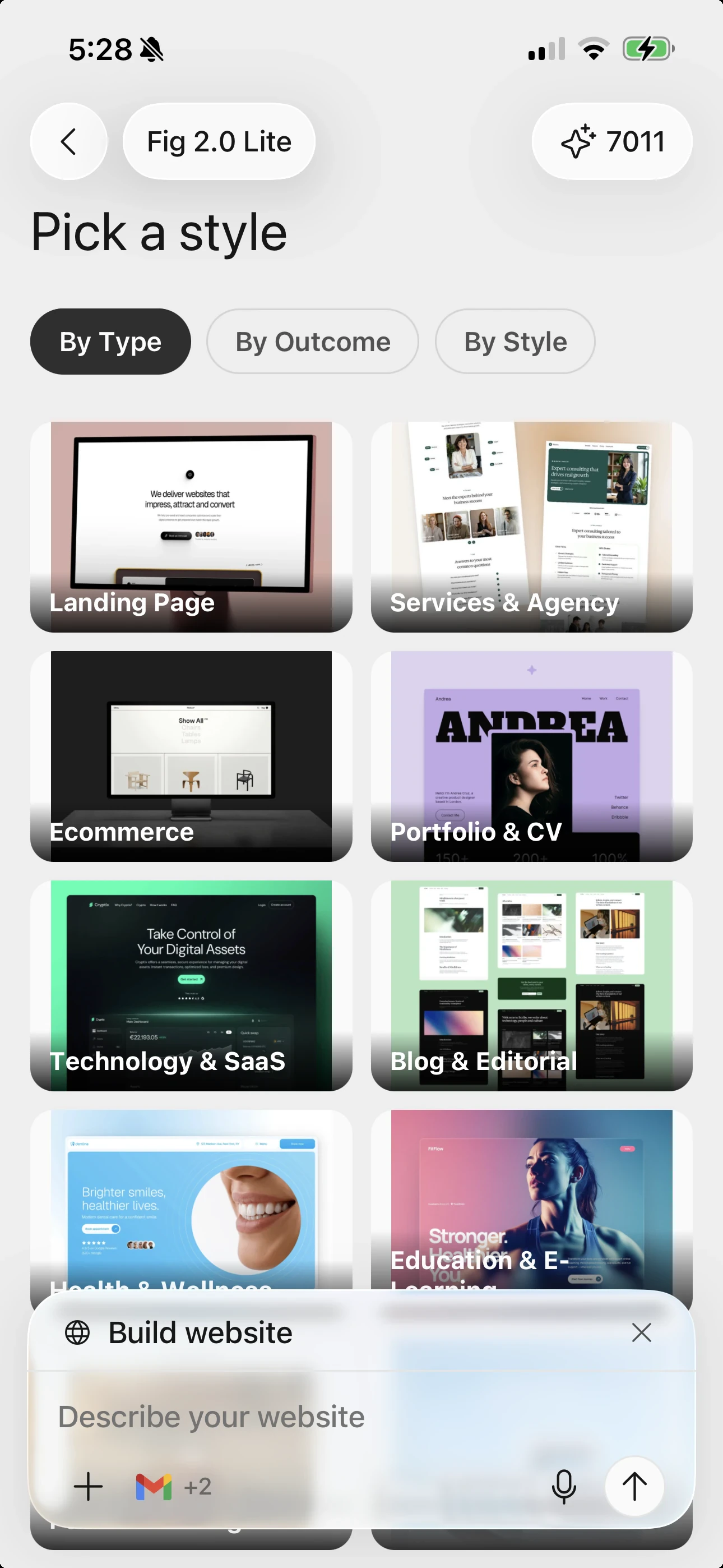
In a chat, tell Fig what kind of website you want. Include anything that matters to you, like:- What your business does
- The name you want shown
- The style or colors you like
- Any sections you need (about, services, contact, booking, and so on)
Make it your own
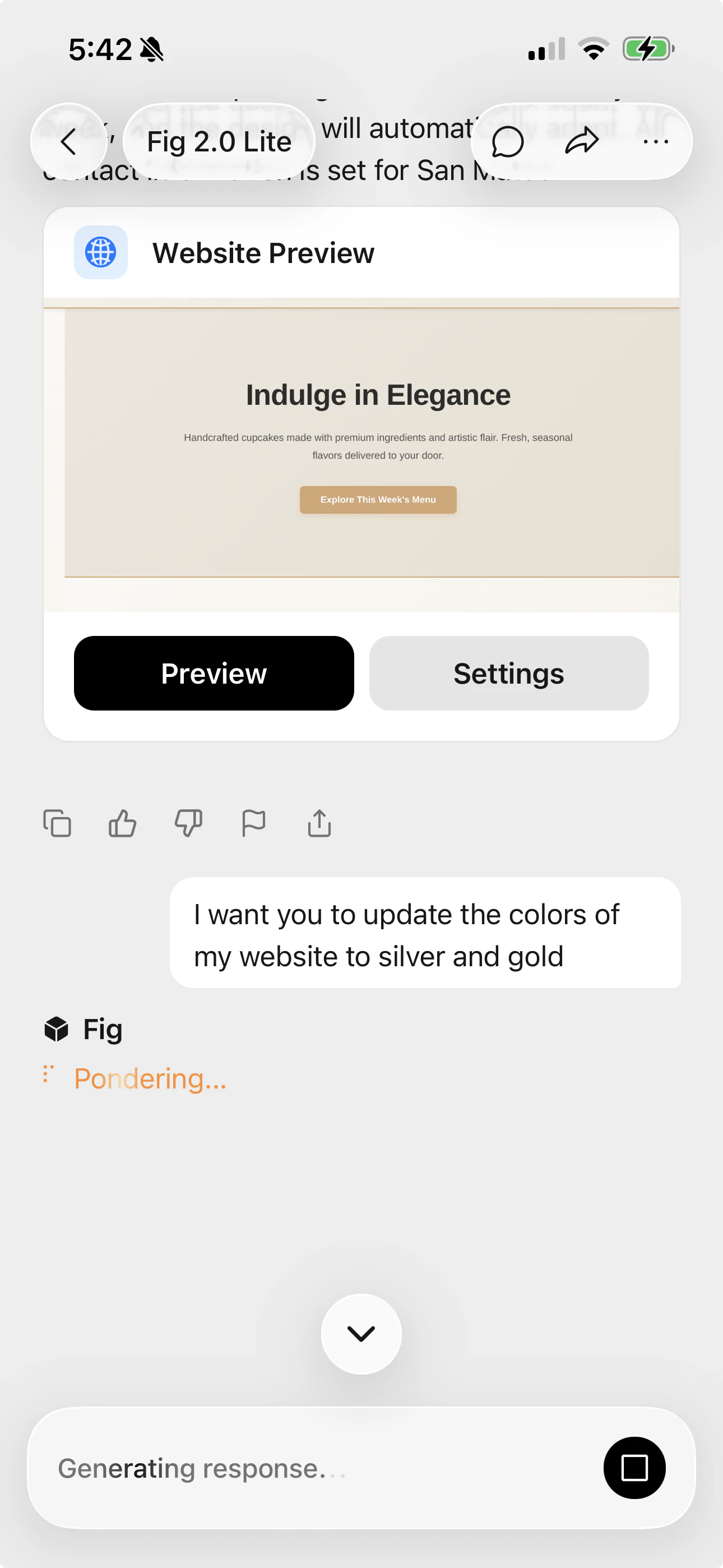
The easiest way to fine-tune your website is to simply tell Fig what to change in the chat. For example, “Update the colors of my website to silver and gold” or “Make the headline bigger.” Fig updates your site and shows you a live preview. You can change just about anything this way:- Text — update any wording
- Images — swap in your own photos
- Templates — try a different layout
- Fonts & colors — match your brand’s look
- Sections — add, remove, or reorder parts of the page
- Business type — help Fig tailor the design to your kind of business
Publish it for free
When you’re ready, publish your website to put it online. Every Fig website can go live for free at ahellofig.app web address — so you can share it with anyone
right away, at no cost.
Open your site's settings
From your website, go to the General tab. You’ll see its publish status —
a new site starts as Not published.
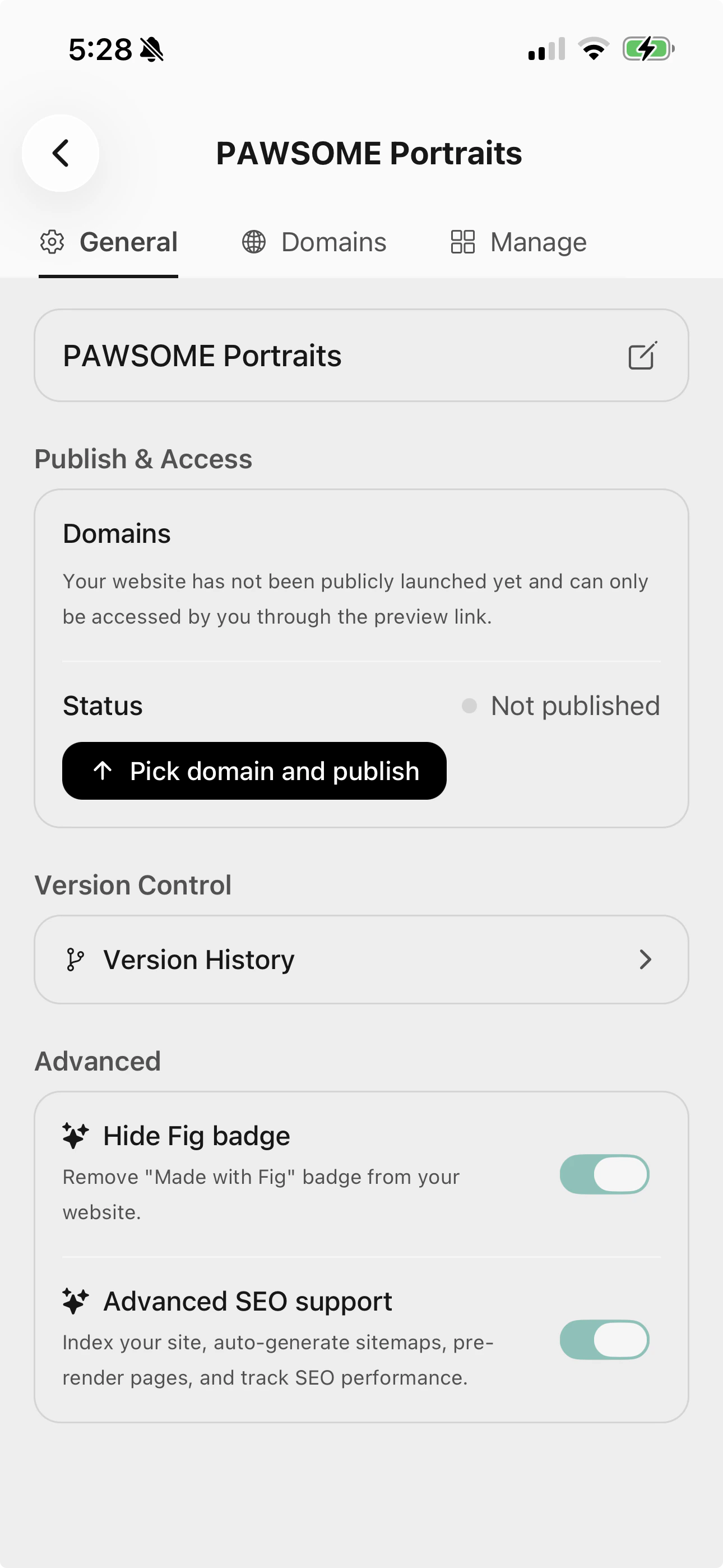
Changed your mind? You can unpublish at any time to take your site offline.
Use your own custom domain
A custom domain is your own web address — likeyourbusiness.com — instead of
the free hellofig.app one. It makes your business look more professional and
easier to remember.
Why it’s worth it:
- Builds trust with your visitors
- Strengthens your brand with a name that’s truly yours
- Helps people find you and discover your business online
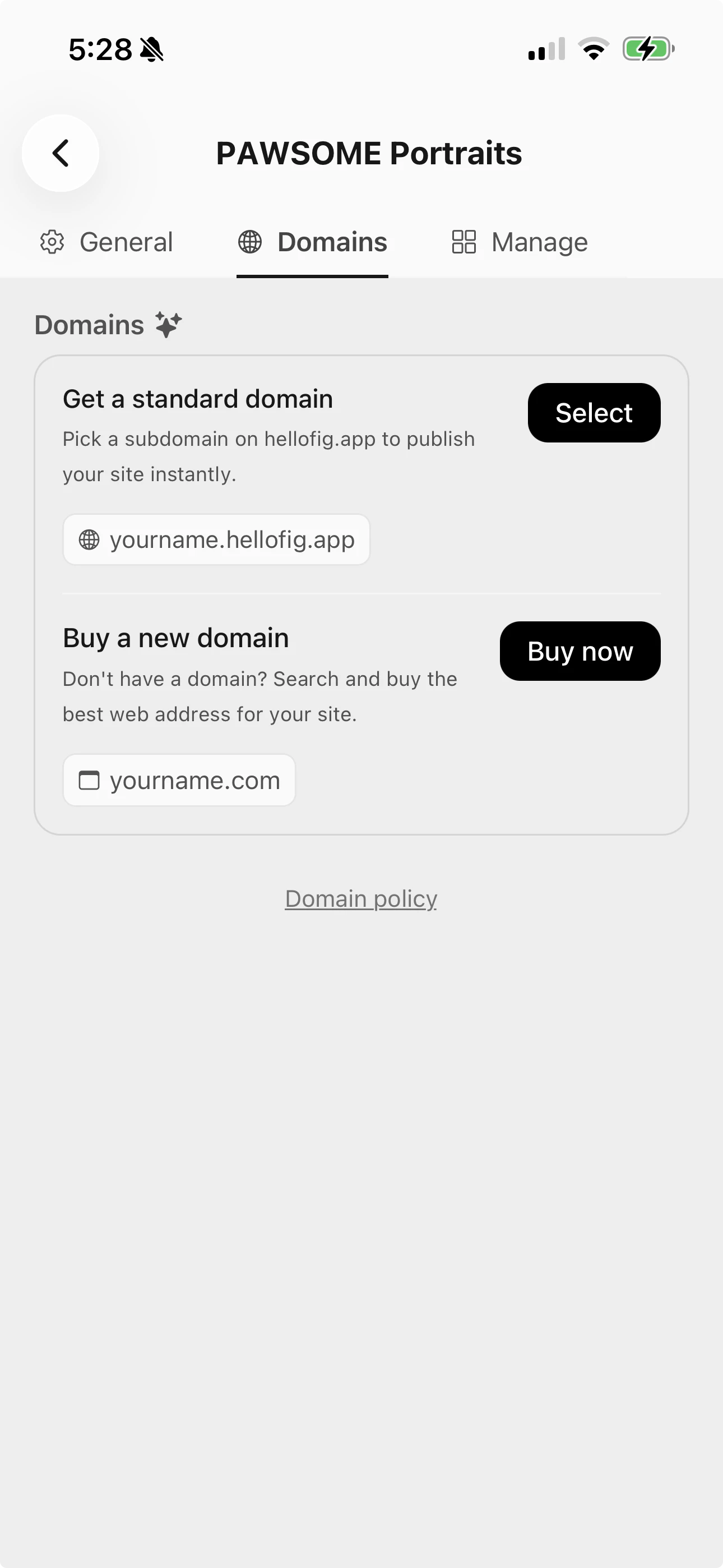
- Get a standard domain — pick a free
hellofig.appsubdomain to publish your site instantly. - Buy a new domain — search for the perfect web address (like
yourbusiness.com) and buy it right inside Fig, then publish your site to it.
After you set up a custom domain, it can take a few minutes to go live while
everything connects behind the scenes. That’s normal — Fig handles the technical
parts for you.
Next steps
Chatting with Fig
Tips for asking Fig to build and refine your site.
Need a hand?
Email support@hellofig.io and we’ll help you out.