> ## Documentation Index
> Fetch the complete documentation index at: https://help.hellofig.io/llms.txt
> Use this file to discover all available pages before exploring further.
# Getting started
> Set up Fig, create your account, and make your first project in a few minutes.
Getting up and running with Fig takes just a few minutes. Here's everything you
need to do.
## 1. Get Fig
You can use Fig on your phone or in your web browser — your projects stay in sync
across both.
For iPhone and iPad.
For Android phones and tablets.
Prefer your computer? You can also use Fig right in your web browser — no
download needed.
## 2. Create your account
Launch the app on your phone, or open Fig in your browser.
Create an account with your email, or continue with Apple or Google. It only
takes a moment.
Answer a couple of quick questions so Fig can tailor what it builds to you and
your business.
## 3. Start your first project
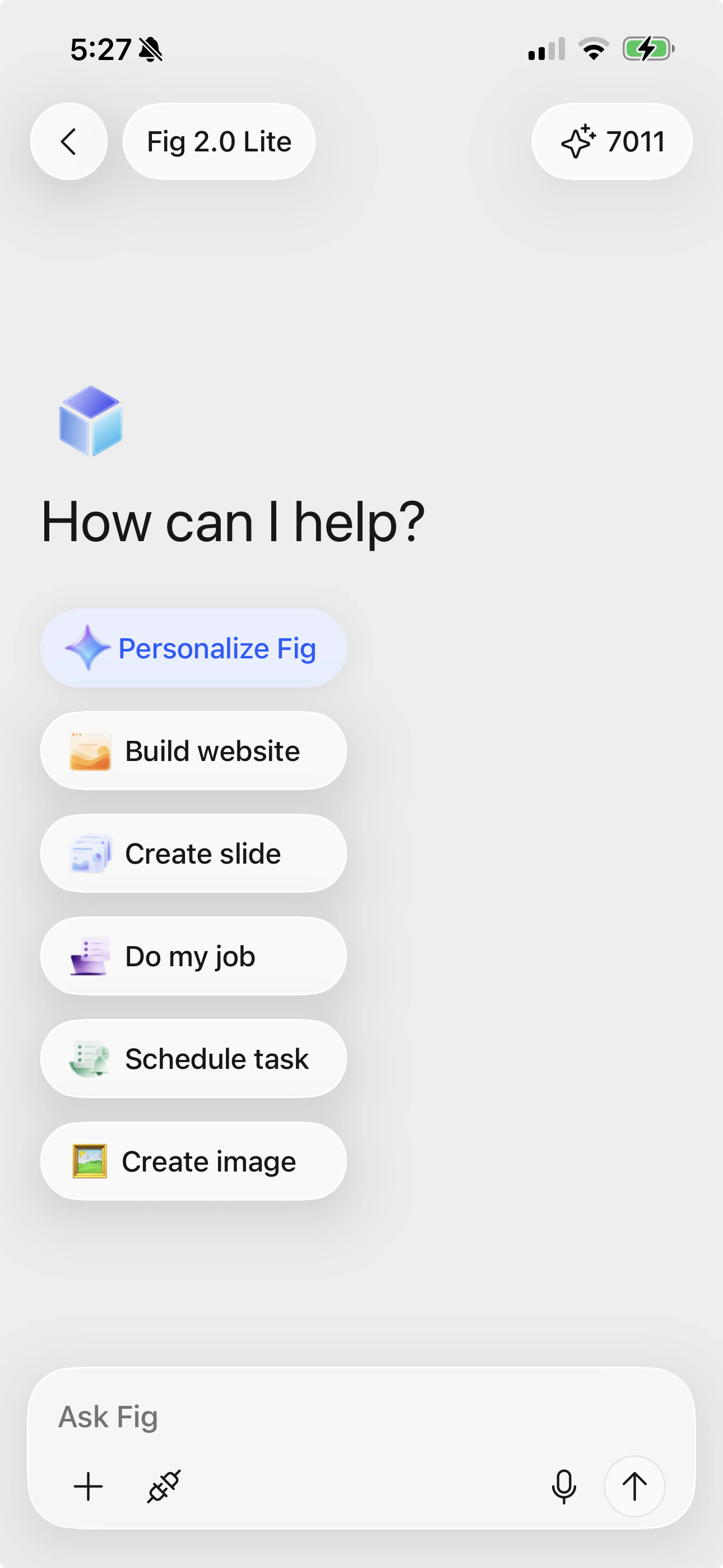
From the home screen, just tell Fig what you want — type it into **Ask Fig**, or
tap a quick action like **Build website**, **Create slide**, or **Create image**
to get started. Not sure where to begin? Try one of these:
* "Build a website for my coffee shop."
* "Create a simple flyer for a weekend sale."
* "Help me write a welcome email to new customers."
 ## 4. Watch Fig work
Once you send your request, Fig gets to work. You'll see its **progress** as it
plans and builds — no need to do anything while it works. This can take a little
time for bigger projects, and that's normal.
## 5. Review, refine, and publish
When Fig is done, take a look at the result. If something isn't quite right, just
tell Fig what to change — for example, "Make the heading bigger" or "Use a warmer
color." When you're happy, you can **publish** or **share** your project.
Everything you create is saved automatically in your [Library](/features/library),
so you can always come back to it later.
## Next steps
Get the most out of Fig with a few simple tips.
Build a website and put it live on the web.
## 4. Watch Fig work
Once you send your request, Fig gets to work. You'll see its **progress** as it
plans and builds — no need to do anything while it works. This can take a little
time for bigger projects, and that's normal.
## 5. Review, refine, and publish
When Fig is done, take a look at the result. If something isn't quite right, just
tell Fig what to change — for example, "Make the heading bigger" or "Use a warmer
color." When you're happy, you can **publish** or **share** your project.
Everything you create is saved automatically in your [Library](/features/library),
so you can always come back to it later.
## Next steps
Get the most out of Fig with a few simple tips.
Build a website and put it live on the web.