> ## Documentation Index
> Fetch the complete documentation index at: https://help.hellofig.io/llms.txt
> Use this file to discover all available pages before exploring further.
# Talking with Fig
> Speak with Fig out loud — same conversation, no typing needed.
Sometimes it's easier to just say it. With Fig's **voice mode**, you can talk to
Fig out loud and hear it respond — hands-free, no typing.
## Starting a voice conversation
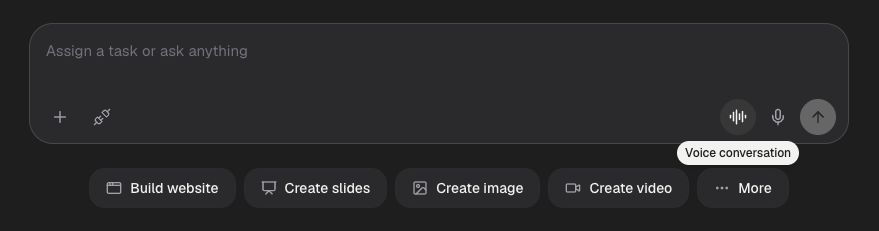
Tap the **voice button** next to the message box to start talking. Fig listens,
responds, and gets to work — just like a typed request.
 Voice and text share the **same conversation**. You can say something out loud,
then switch back to typing, and Fig keeps all the context — nothing is lost
between the two.
## What you can do by voice
Anything you'd type, you can say:
* "Add a testimonials section to my site with three quotes."
* "What's on my schedule this week?"
* "Make me a flyer for Saturday's sale."
## Choosing a voice
You can pick the voice Fig speaks with from your profile settings. Several voices
are included, with some additional voices as part of premium plans.
Voice is great for working on the go — describe what you want while you're away
from your desk, and review the result when you're back.
Voice and text share the **same conversation**. You can say something out loud,
then switch back to typing, and Fig keeps all the context — nothing is lost
between the two.
## What you can do by voice
Anything you'd type, you can say:
* "Add a testimonials section to my site with three quotes."
* "What's on my schedule this week?"
* "Make me a flyer for Saturday's sale."
## Choosing a voice
You can pick the voice Fig speaks with from your profile settings. Several voices
are included, with some additional voices as part of premium plans.
Voice is great for working on the go — describe what you want while you're away
from your desk, and review the result when you're back.