> ## Documentation Index
> Fetch the complete documentation index at: https://help.hellofig.io/llms.txt
> Use this file to discover all available pages before exploring further.
# Slides
> Turn a description into a finished presentation — then export it to PDF or PowerPoint.
Fig builds complete **slide decks** from a simple description. Tell it the topic and
the audience, and Fig handles the structure, the wording, and the visuals — handing
you a presentation that's ready to show.
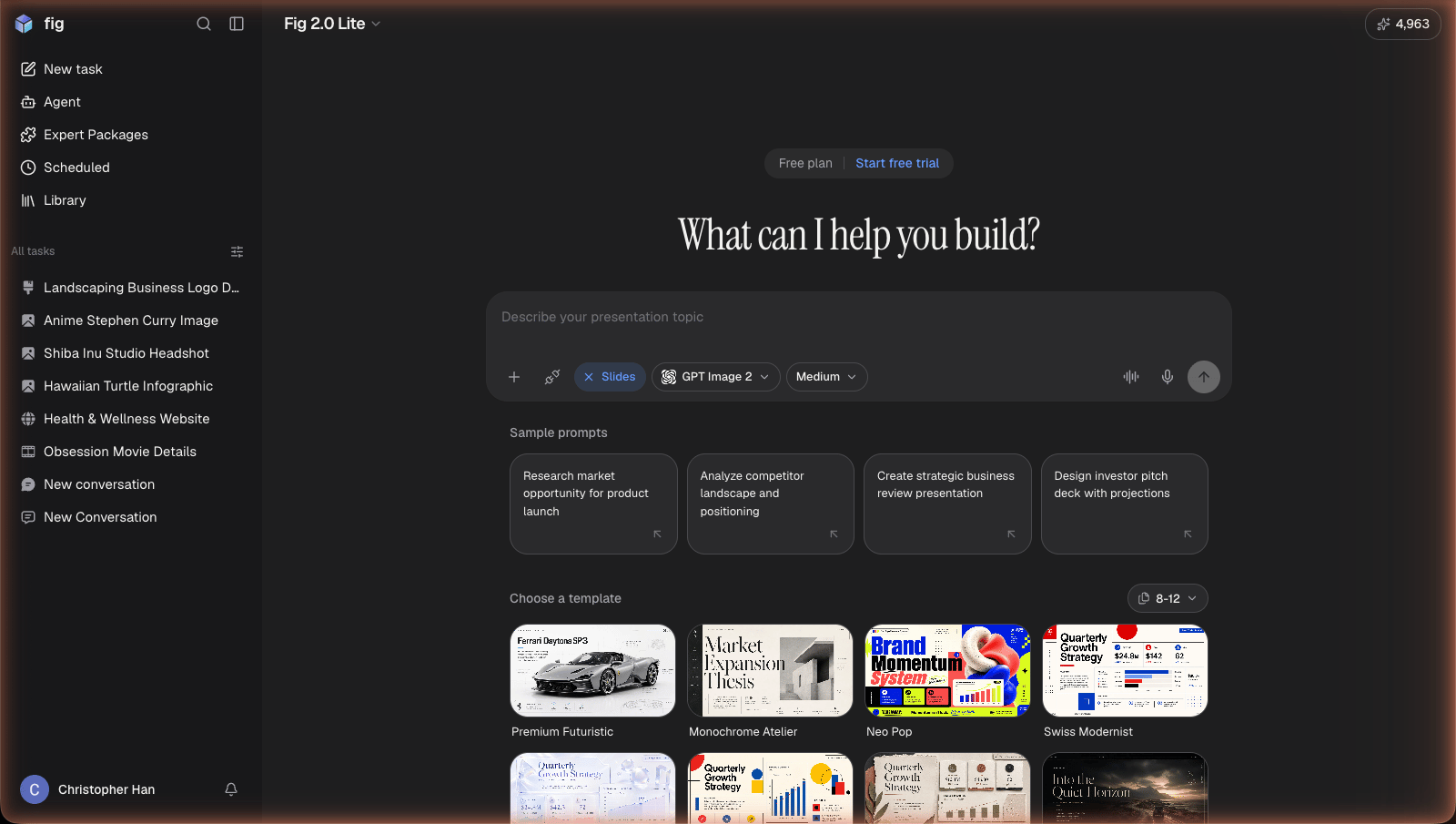 ## Quick start
Open a [chat](/features/chatting-with-fig) (or tap the **Create slide** quick
action) and describe the deck you want. A short request works:
```text theme={null}
Create a 12-slide deck introducing my handmade candle business to potential stockists.
```
Or give Fig more to work with for a sharper result:
```text theme={null}
Create a deck for my coffee roastery's monthly review. Cover sales (up 18%),
two new blends, our holiday pop-up plan, and next month's goals. Keep it upbeat
and easy to skim, with a chart for the sales numbers.
```
## What Fig creates
* A full deck with a clear flow — title, sections, and a closing slide
* Written content for each slide, in the tone you ask for
* Visuals and layouts that match the topic
You'll see the slides **build live** as Fig works, so you can watch the deck take
shape rather than waiting for the whole thing at once.
## Refining your deck
Just keep chatting to make changes — "combine slides 3 and 4," "use warmer colors,"
"add a slide about shipping." Fig updates the deck and shows you the result.
## Exporting
When it's ready, export your deck however you need it:
* **PDF** — for sharing or printing
* **PowerPoint** — to keep editing in PowerPoint
* **Google Slides / Google Drive** — sent straight to your
[connected](/integrations/google-drive) Google account
Mention your audience and the goal of the presentation up front — "for investors,"
"for a class," "to win a new client." It's the fastest way to get the right tone.
## Quick start
Open a [chat](/features/chatting-with-fig) (or tap the **Create slide** quick
action) and describe the deck you want. A short request works:
```text theme={null}
Create a 12-slide deck introducing my handmade candle business to potential stockists.
```
Or give Fig more to work with for a sharper result:
```text theme={null}
Create a deck for my coffee roastery's monthly review. Cover sales (up 18%),
two new blends, our holiday pop-up plan, and next month's goals. Keep it upbeat
and easy to skim, with a chart for the sales numbers.
```
## What Fig creates
* A full deck with a clear flow — title, sections, and a closing slide
* Written content for each slide, in the tone you ask for
* Visuals and layouts that match the topic
You'll see the slides **build live** as Fig works, so you can watch the deck take
shape rather than waiting for the whole thing at once.
## Refining your deck
Just keep chatting to make changes — "combine slides 3 and 4," "use warmer colors,"
"add a slide about shipping." Fig updates the deck and shows you the result.
## Exporting
When it's ready, export your deck however you need it:
* **PDF** — for sharing or printing
* **PowerPoint** — to keep editing in PowerPoint
* **Google Slides / Google Drive** — sent straight to your
[connected](/integrations/google-drive) Google account
Mention your audience and the goal of the presentation up front — "for investors,"
"for a class," "to win a new client." It's the fastest way to get the right tone.