> ## Documentation Index
> Fetch the complete documentation index at: https://help.hellofig.io/llms.txt
> Use this file to discover all available pages before exploring further.
# Image editor
> Polish any image with filters, adjustments, text, and AI tools — right inside Fig.
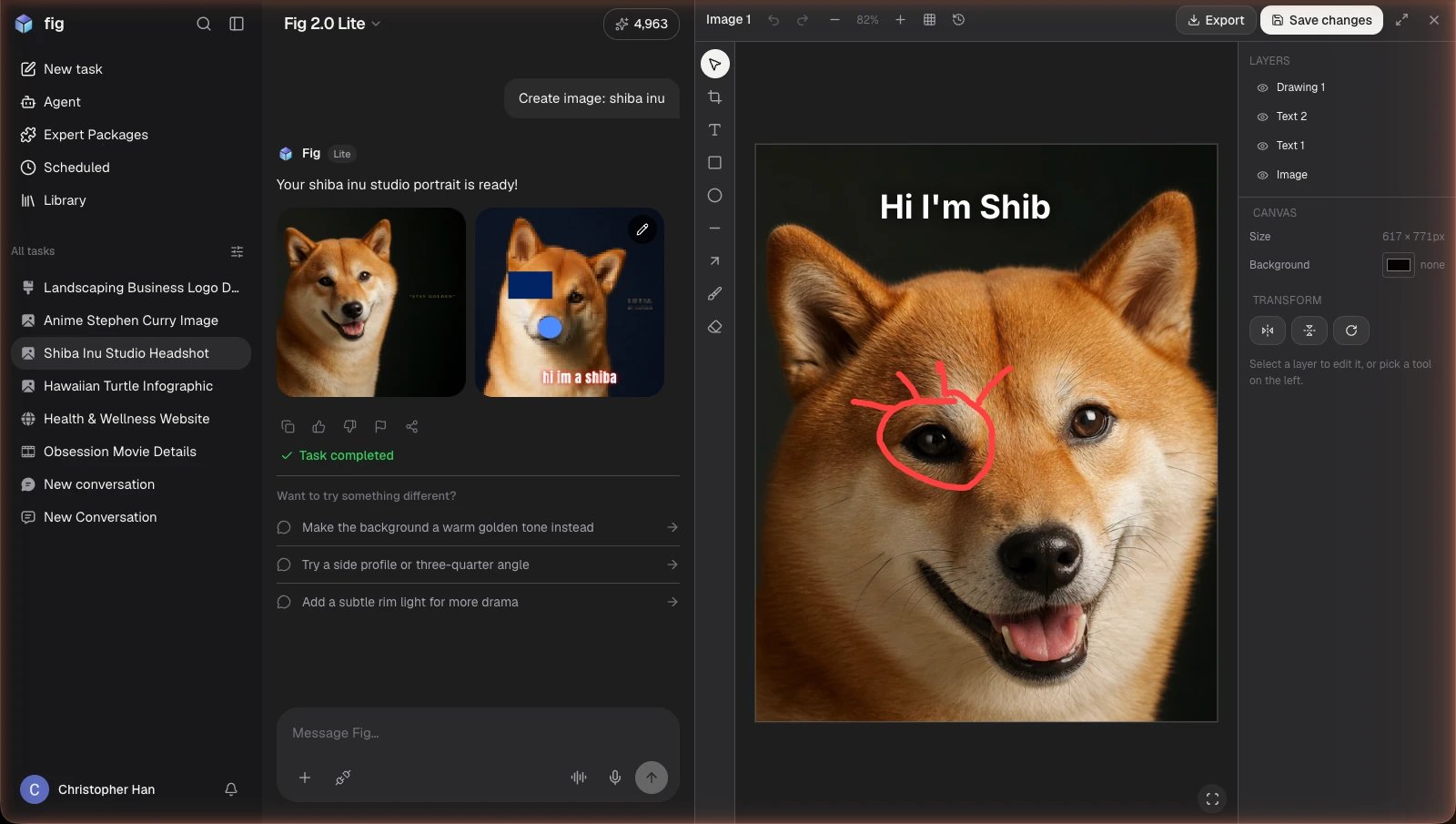
Fig doesn't just generate images — it includes a full **image editor**, so you can
take any image (one Fig made, or one you uploaded) and make it perfect.
The image editor is available in Fig on the web. Open any image from your
[Library](/features/library) and choose **Open in editor**.
 ## What you can do
* **Filters & adjustments** — apply one-tap filter presets, or fine-tune
brightness, contrast, and more with adjustment sliders.
* **Text & effects** — add and style text for posters, posts, and thumbnails, with
a dedicated text panel for precise control.
* **AI touch-ups** — remove an image's background or upscale it to higher quality
with one tap.
* **Magic layers** — split an image into its subject and background automatically,
or break each block of text into its own layer, so you can move and restyle
pieces independently.
* **Layers** — stack images and text and arrange them however you like.
* **Undo / redo** — experiment freely; every step can be undone, and your edits
save in place.
## Exporting your image
When you're done, export in the size you need — the editor includes ready-made
presets for common uses (like Instagram posts, YouTube thumbnails, and
high-resolution 4K), so you don't have to remember dimensions.
## Drafts and versions
Your edits are saved as **drafts** as you go, and you can keep **named versions**
of an image to come back to.
A great combo: ask Fig to generate a logo in chat, then open it in the editor to
remove the background — and use it on your website's header.
## What you can do
* **Filters & adjustments** — apply one-tap filter presets, or fine-tune
brightness, contrast, and more with adjustment sliders.
* **Text & effects** — add and style text for posters, posts, and thumbnails, with
a dedicated text panel for precise control.
* **AI touch-ups** — remove an image's background or upscale it to higher quality
with one tap.
* **Magic layers** — split an image into its subject and background automatically,
or break each block of text into its own layer, so you can move and restyle
pieces independently.
* **Layers** — stack images and text and arrange them however you like.
* **Undo / redo** — experiment freely; every step can be undone, and your edits
save in place.
## Exporting your image
When you're done, export in the size you need — the editor includes ready-made
presets for common uses (like Instagram posts, YouTube thumbnails, and
high-resolution 4K), so you don't have to remember dimensions.
## Drafts and versions
Your edits are saved as **drafts** as you go, and you can keep **named versions**
of an image to come back to.
A great combo: ask Fig to generate a logo in chat, then open it in the editor to
remove the background — and use it on your website's header.